ConstrainedBox
ConstrainedBox
ConstrainedBox
ConstrainedBox
ConstrainedBox 是 Flutter 中一个非常实用的布局组件,它允许你对子组件施加额外的约束条件(constraints)。
类似鸿蒙的通用属性
**constraintSize**
基本概念
ConstrainedBox 会在其子组件上施加额外的约束(BoxConstraints),这些约束会与父组件传递下来的约束合并。
1
2
3
4
ConstrainedBox(
  constraints: BoxConstraints(...),
  child: Widget(...),
)
常见用法
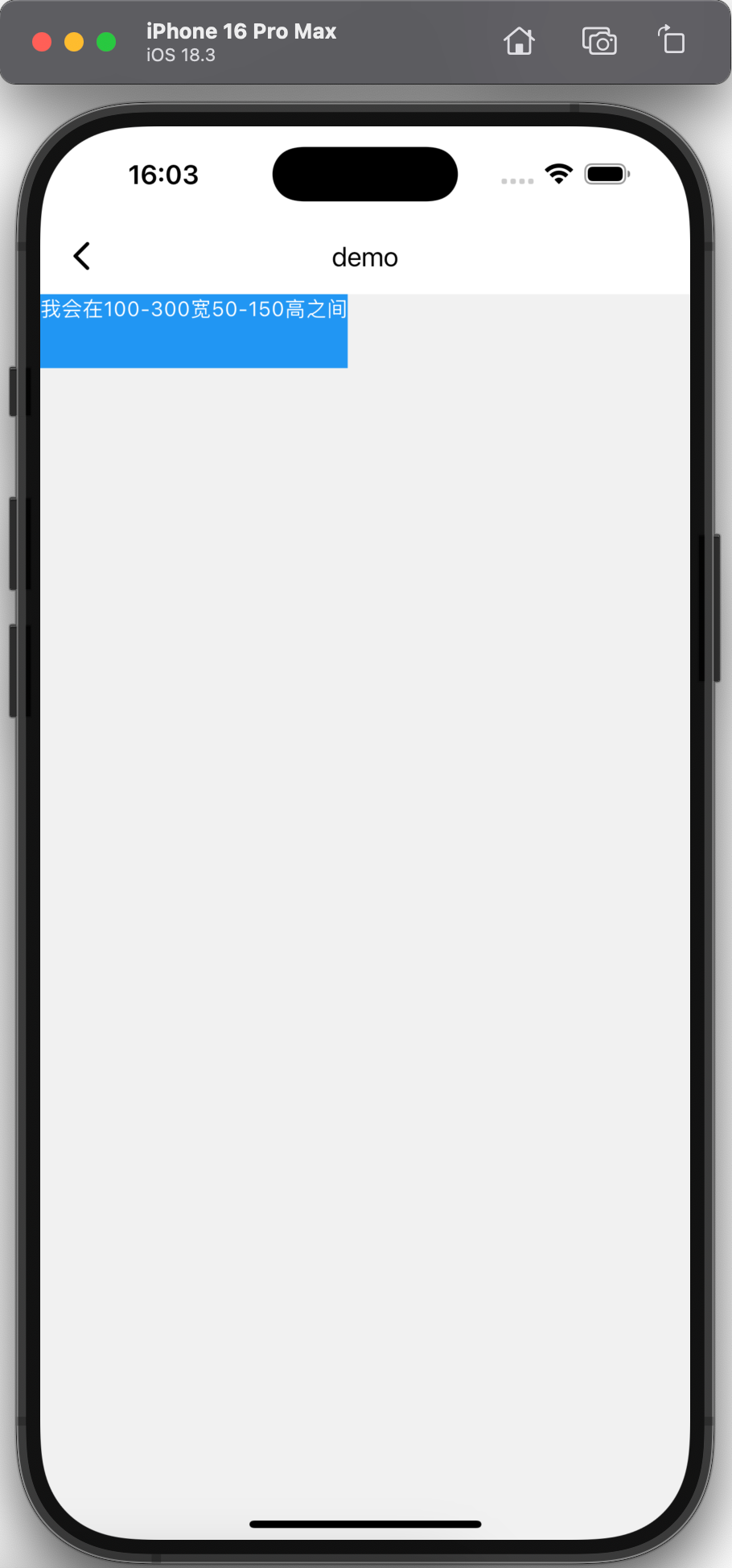
1. 设置最小/最大尺寸(蓝色盒子)
1
2
3
4
5
6
7
8
9
10
11
12
13
ConstrainedBox(
  constraints: BoxConstraints(
    minWidth: 100,
    minHeight: 50,
    maxWidth: 300,
    maxHeight: 150,
  ),
  child: Container(
    color: Colors.blue,
    child: Text('我会在100-300宽\n50-150高之间',
                style: TextStyle(color: Colors.white)),
  ),
)
预期效果:\ 一个蓝色容器,宽度会在100-300之间变化(根据父容器宽度),高度会在50-150之间变化。如果父容器很宽,盒子最大为300×150;如果父容器很窄,盒子最小为100×50。
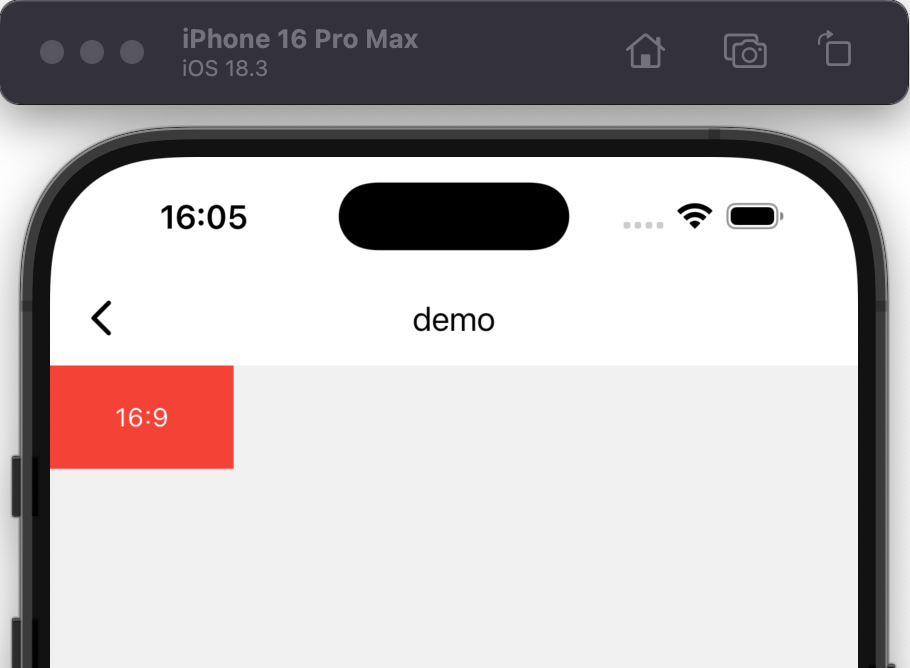
2. 强制宽高比(红色16:9盒子)
1
2
3
4
5
6
7
8
9
10
ConstrainedBox(
  constraints: BoxConstraints.tightFor(width: 100), // 固定宽度
  child: AspectRatio(
    aspectRatio: 16/9,
    child: Container(
      color: Colors.red,
      child: Center(child: Text('16:9', style: TextStyle(color: Colors.white))),
    ),
  ),
)
预期效果:\ 一个红色矩形,宽度固定为100,高度自动计算为56.25(因为100/16×9=56.25),保持16:9的宽高比。
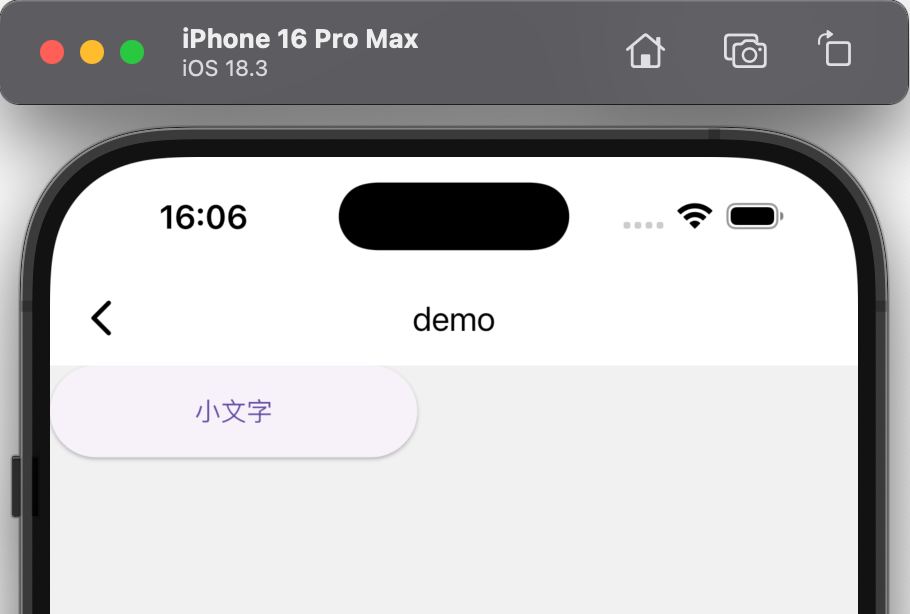
3. 限制文本按钮的最小尺寸
1
2
3
4
5
6
7
ConstrainedBox(
  constraints: BoxConstraints(minWidth: 100, minHeight: 40),
  child: ElevatedButton(
    onPressed: () {},
    child: Text('小文字'),
  ),
)
预期效果:\ 一个按钮,即使文字很短(如”小文字”),按钮也会保持至少100×40的大小(比默认按钮大)。
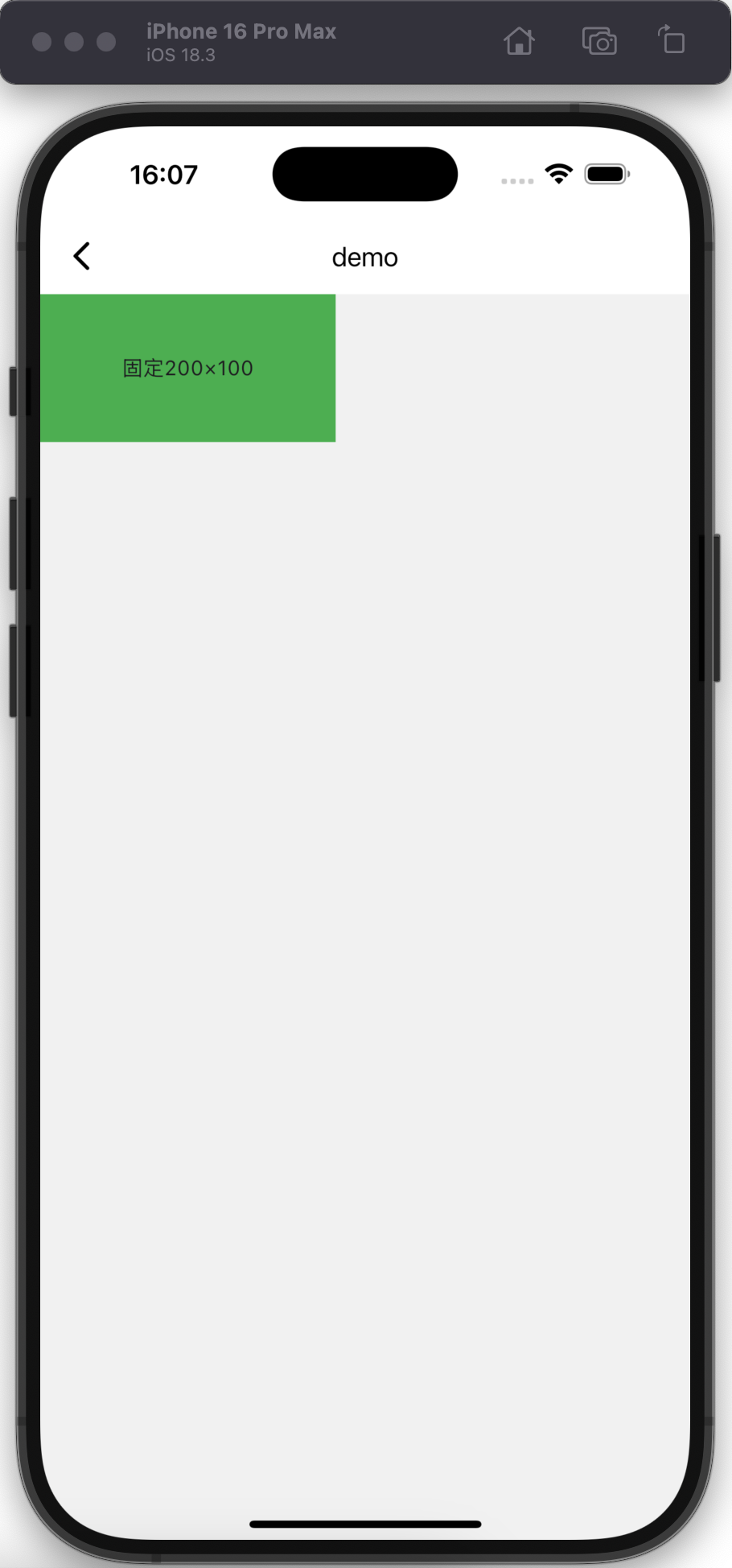
4. 固定大小的绿色盒子
1
2
3
4
5
6
7
ConstrainedBox(
  constraints: BoxConstraints.tightFor(width: 200, height: 100),
  child: Container(
    color: Colors.green,
    child: Center(child: Text('固定200×100')),
  ),
)
预期效果:\ 一个精确200×100大小的绿色盒子,不会随父容器变化。
5. 与Expanded结合使用(行布局)
1
2
3
4
5
6
7
8
9
10
11
12
13
14
15
16
17
18
19
Row(
  children: [
    ConstrainedBox(
      constraints: BoxConstraints(minWidth: 100),
      child: Container(
        color: Colors.blue,
        height: 50,
        child: Center(child: Text('至少100宽')),
      ),
    ),
    Expanded(
      child: Container(
        color: Colors.red,
        height: 50,
        child: Center(child: Text('充满剩余空间')),
      ),
    ),
  ],
)
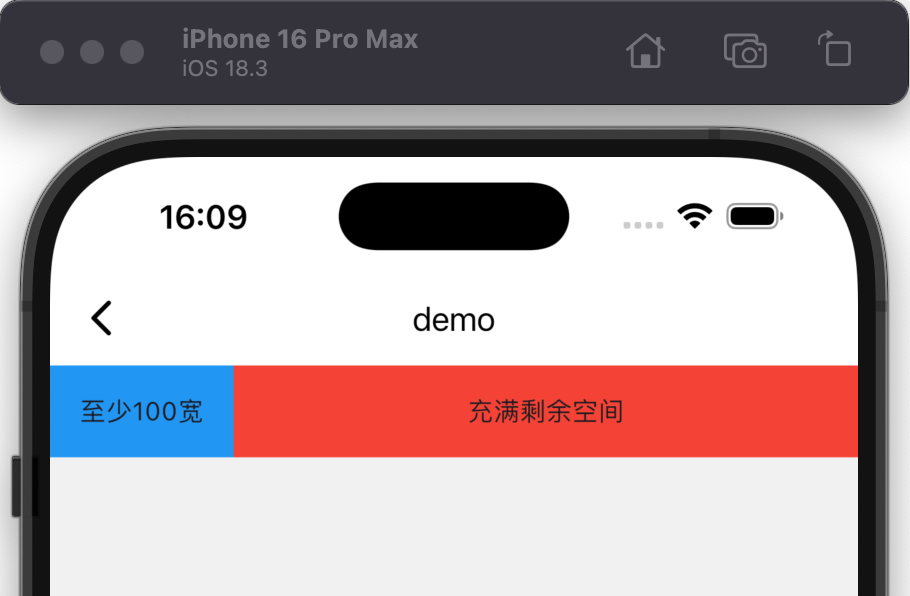
预期效果:\ 一行两个盒子,左边蓝色盒子宽度至少100(可能更大),右边红色盒子占据剩余所有空间。
实用技巧1:全宽按钮
1
2
3
4
5
6
7
ConstrainedBox(
  constraints: BoxConstraints.expand(),
  child: ElevatedButton(
    onPressed: () {},
    child: Text('全宽按钮'),
  ),
)
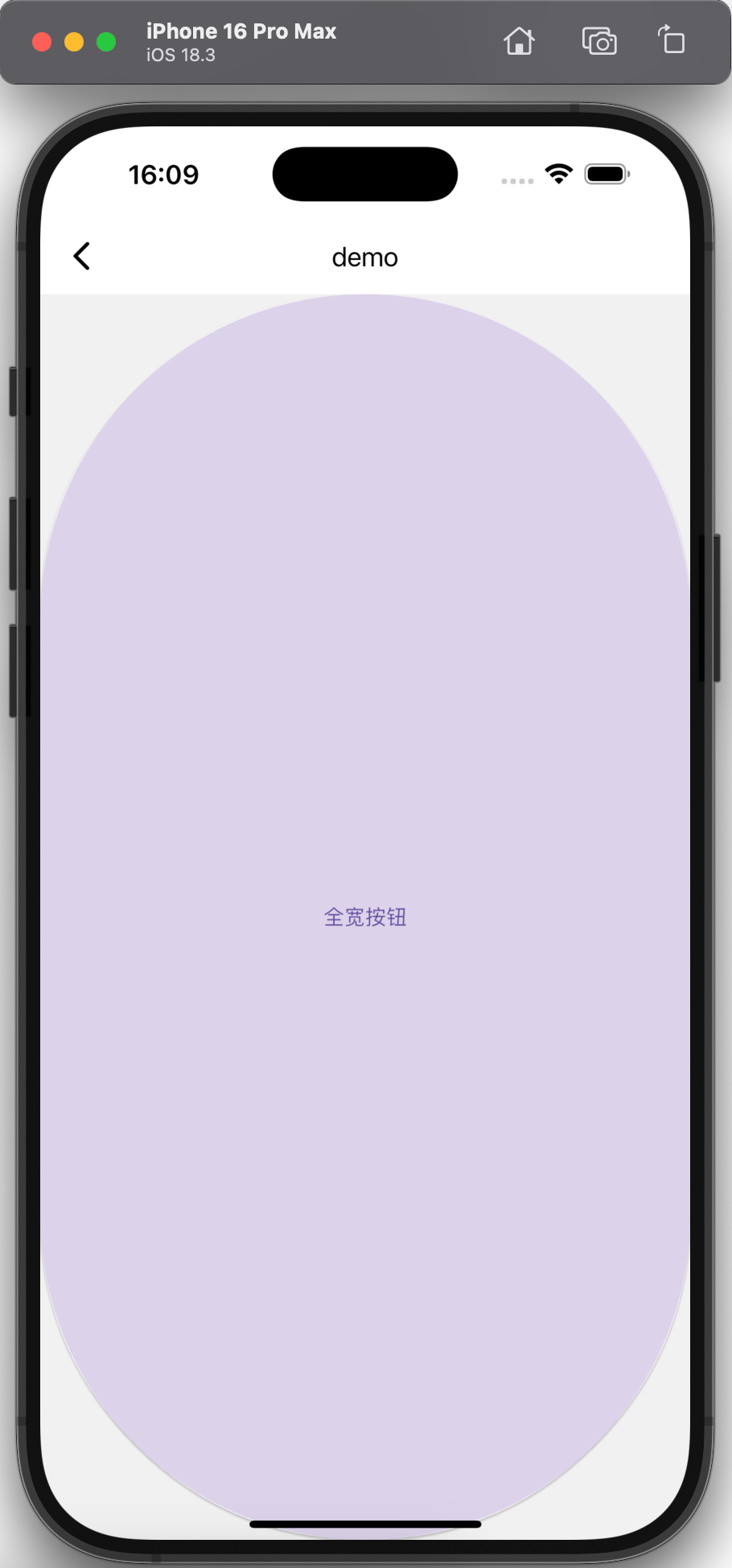
预期效果:\ 一个充满整个可用空间的按钮(在Column中会占满横轴宽度)。
实用技巧2:响应式尺寸限制
1
2
3
4
5
6
7
8
9
10
11
ConstrainedBox(
  constraints: BoxConstraints(minWidth: 100, maxWidth: MediaQuery.of(context).size.width * 0.8),
  child: Container(
    color: Colors.orange,
    padding: EdgeInsets.all(8),
    child: Text(
      '宽度限制为屏幕80%宽度限制为屏幕80%宽度限制为屏幕80%宽度限制为屏幕80%宽度限制为屏幕80%宽度限制为屏幕80%',
      style: TextStyle(color: Colors.white),
    ),
  ),
)
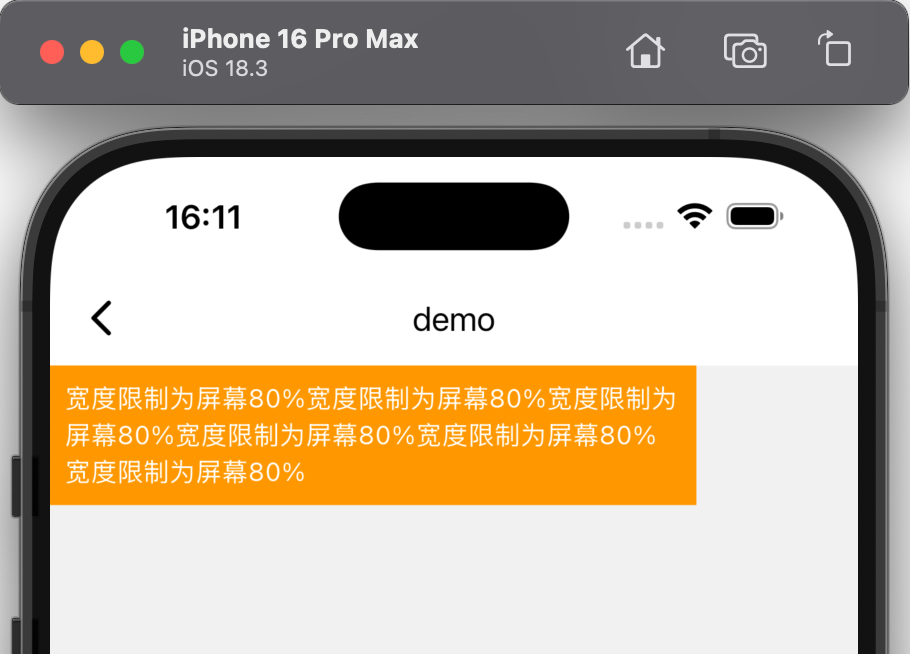
预期效果:\ 一个橙色容器,最小宽度100,最大不超过屏幕宽度的80%。
本文由作者按照 CC BY 4.0 进行授权